
what does collate mean when printing? the measuring of its operation, when and why it is needed. The basics of collated/ uncollated printing.
Introduction:
When you have ever been printing a multi-page document and you find in your printer settings the option – Collate – you may have wondered what this actually means. Don’t worry—you’re not alone.
The collate printing feature is a bit tricky to use, particularly when you need to print reports, booklets, handouts etc. To put it in simple words, collate refers to the process of putting together or organizing several pages into a particular order.
In this article, we’ll explain:
- Mode of the printing of collate.
- Collated and uncollated printing difference.
- When to use each option
- It is about how to collate documents either automatically or manually.
Let’s dive in!
What is the meaning of Collate in printing?
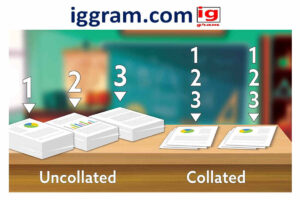
The word collate is derived out of the Latin word collatus which means to gather or bring together. The process of organizing the printed pages in a particular sequence is the concept known as collating in the printing process, particularly when one is printing multi-page documents in multiple sets.
For example:
Consider a case where you are printing 3 copies of a 5 page report.
- The sets will be produced in this order by your printer in the event that you select collated printing:
Set 1: Page 1 → Page 2 → Page 3 → Page 4 → Page 5
Set 2: Page 1 → Page 2 → Page 3 → Page 4 → Page 5
Set 3: Page 1 → Page 2 → Page 3 → Page 4 → Page 5
- To do uncollated printing, the printer will print the copies of every page together:
Set 1: Page 1 (x3) → Page 2 (x3) → Page 3 (x3) → Page 4 (x3) → Page 5 (x3)
Therefore, collated printing helps you keep your sets in order – perfect with reports, booklets and presentations.
Collated vs. Uncollated Printing: The Key Difference
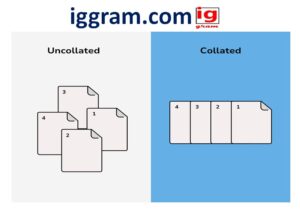
| Feature | Collated Printing | Uncollated Printing |
| Order | Prints sets in sequence (1,2,3…) | Prints pages grouped together (1,1,1…) |
| Best For | Multi-page reports, manuals, proposals | Single-page flyers, forms, handouts |
| Example | Set 1: 1–5, Set 2: 1–5 | All 1s, then all 2s, etc. |
| Time-Saving | Saves sorting time later | Easier for bulk single-page copies |
In short:
When printing multi-page documents, which require to remain in sequence, use Collate.
That Collate should not be checked when you are printing more than one copy of a one-page file or when you are folding the pages together by hand.
Usage of the option of collate at printing.
On Windows:
- How to open an item to be printed.
- Click File → Print.
- Select your printer.
- Find the checkbox or drop down which is labeled as Collate.
- This option is to check or uncheck to print collated or uncollated respectively.
- Click Print.
On Mac:
- Go to File → Print.
- At the print dialog box, click prints and pages.
- Select the Collate checkbox.
- Hit Print to start.
The collate option is available in most of the modern printers (HP, Canon, Epson, Brother, etc.) and therefore you do not need to format your pages manually.
When to Collate during the printing?
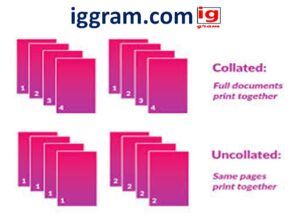
The collated printing is necessary when printing several-pages documents and they must be read sequentially. The following are some of the examples that you should enable collate:
- Business Reports –pages in proper sequence to meet or clients.
- Training Manuals or booklets – provides organization to learners.
- Invoices or Receipts –Makes sure every set has one customer.
- School or College Assignments –store every copy complete and systematically.
- Presentation or Proposals –Makes handouts professional and easy to distribute.
Uncollated printing would be more effective and timely in case you want to print stacks of the same single-page flyers or posters.
Are You able to Collate pages manually?
Yes, you can have the pages collated by hand, at least when your printer does not have automatic collating, or when you are dealing with small quantities of pages.
Here’s how to do it manually:
- Print one copy of each page (e.g. 10 copies of page 1 then 10 copies of page 2).
- Put them in the right sequence (page 1- page 2- page 3, etc.).
- Clamp, staple or stick each together.
Although this is effective, large documents are time consuming using this method. That is why automatic collate options are saviors in the new generation printers.
Advantages of Collated printing.
- Time-Saving: There will be no necessity to sort or order pages manually.
- Organizes Paperwork: All documentation is in place.
- Professional Appearance: Ideal when addressing a client.
- Minimizes Human Flaws: Minimizes the possibility of confusing pages.
- Best Bulk Printer: Deals with large jobs with many pages.
Common Mistakes to Avoid
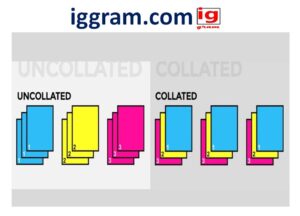
- Printing Uncollated by Accident: You will have heaps of page 1s, 2s and 3s mixed in together.
- Omission to Check the Collate Option: It is always a good idea to check settings before clicking on the Print button.
- Printing Multiple Copies without preview: Make sure to preview the print preview before handing in order and amount of copies.
Trick Role: Collating using Duplex (Two Sided) Printing.
When your printer has the duplex printing option, then you can collate and print on both sides to have a booklet finish. This is a green way of doing things, paper-saving and appears professional.
To enable both:
- Check Printers on both sides (Duplex Printing).
- Then select Collate to make sure that the pages remain in order.
Last Reflections: The meaning of Collate in printing.
In conclusion, to collate in the printing process is to put the many-page documents together in the proper order. When you choose the collate option, you have the ability of having your printer print out your work one at a time, which makes your work quicker, cleaner and more professional.
In making up of reports, manuals and school projects, always opt to use collated printing to save time and effort.
FAQs
- Collated printing finds what use do we have?
Multi-page documents are kept in order using collated printing, and therefore, every set is printed in the proper sequence. It is best suited to reports, manuals or handouts.
- What will become of the unchecked Collate?
Checking the option of Collate is to have all copies of one page printed together (all page 1s first, then all page 2s, etc.). This can be applied to one page flyers or forms.
- Is there a longer time to do the collated printing?
It may require slightly more time, but it saves time in general as you will not have to sort out the pages by hand later.
- Is it possible to collate both sides?
Yes, provided that your printer has duplex printing, then you can collate and print on one side and the other at the same time.
- Is the default one collated printing?
Collate is the default setting on most of the modern printers, particularly on documents of multiple pages.
Conclusion
The meaning of collate when printing is something everyone should have known who has been printing the multi page document on a regular basis. The collate option makes sure that every group of pages is in the right sequence and saves you time, eliminates mistakes and makes your files look professional. Whether it be printing of reports, booklets, assignments or proposals, it is all so easy and efficient to use collated printing.
The next time you press the print button, you should go into the collate option- again it is a little step that would go a long way towards ensuring that your files are in order and ready to use.
Also read- Top 5 best iphone 14 pro max case


1 thought on “Best 7- things , what does collate mean when printing?”